
Business Central / Sales Operations
Why Penalty and Adjustment Rules Should Be Managed Within Your ERP
Dynamics 365 Zone · Oct 23, 2026
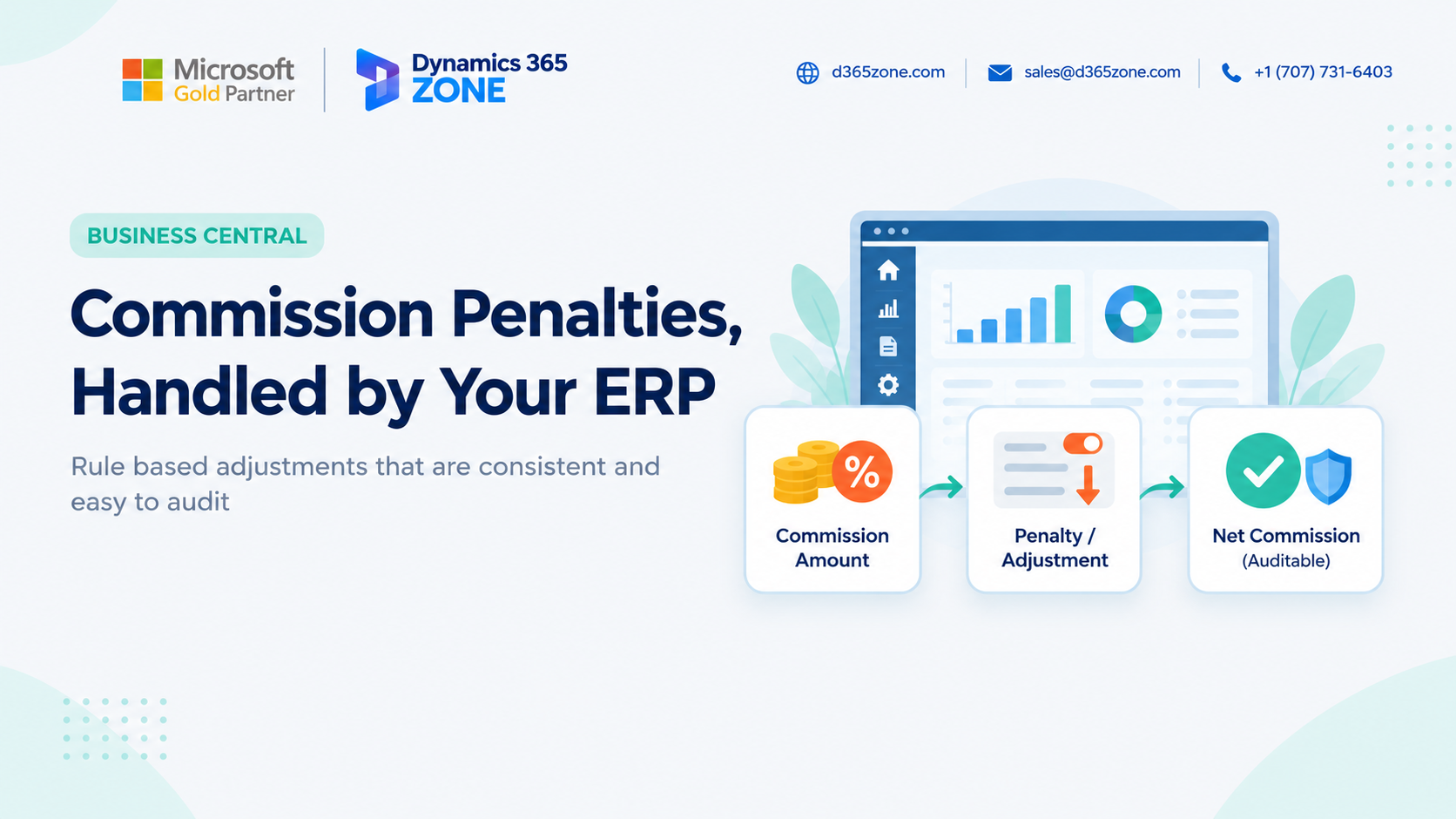
Calculating commission is only part of managing a sales compensation plan. The difficult cases often come later: a customer returns an order, an invoice remains unpaid, or a deal is cancelled after a salesperson has already been rewarded. When these events affect commission, the adjustment needs to be calculated and applied accurately.
The Risks of Managing Clawbacks and Penalties Manually
Many businesses have rules for clawbacks and penalties. Commission might be reversed when goods are returned within 60 days, reduced when an invoice is overdue, or adjusted when a deal falls below a margin target.
The rules may be easy to understand, but applying them reliably takes work. Someone must identify the return or payment issue, connect it to the correct salesperson and commission period, calculate the adjustment, and include it in the commission result.
Managing this process in spreadsheets or relying on individual reminders creates several risks:
- Adjustments can be missed, resulting in commission overpayments.
- The same situation can be handled differently for different salespeople.
- It can be difficult to explain how an adjustment was calculated when a salesperson asks about it.
These problems do not necessarily indicate negligence. They often happen because the rules live in someone's memory or a separate file rather than in the commission process.
Configuring Penalty Rules in Business Central
When your commission process is configured in Microsoft Dynamics 365 Business Central, penalty and adjustment rules can be set up centrally and applied as part of the calculation.
The process first checks whether a configured rule applies to a transaction. If it does, the adjustment is calculated according to that rule. Depending on the plan, it might be a flat amount, a percentage, or a reduction based on another value. The result is then included in the salesperson's commission.
Because the rules are configured once and applied through the same process, eligible transactions are handled consistently across salespeople and commission periods.
How Adjustments Flow Into the Final Commission and Journal
Adjustments need to be reflected correctly in the commission outcome and the accounting process. In a configured Business Central commission process, the adjustment is included before the commission is finalized.
When General Journal Lines are created from the approved commission result, they use the net amount after applicable penalties and adjustments. Finance does not need to calculate and enter a separate manual adjustment. Once the journal is posted, the ledger reflects the approved commission amount.
The commission details can also show the original commission, the adjustment, and the final total, helping the team understand how the amount was reached.
Benefits of Rule-Based Adjustments
Managing penalties in the commission process can improve both day-to-day operations and the quality of the records finance relies on:
- Consistency: The same configured rule is applied to comparable transactions and salespeople.
- Transparency: Commission reviewers can see why a payout changed and what adjustment was applied.
- Fewer errors: Automated checks reduce the chance of missing a return, forgetting a penalty, or making a spreadsheet formula error.
- A clearer audit trail: Adjustments can be traced to the rule and transaction that triggered them, and posted journals can be followed back to the commission result.
- Simpler policy updates: When a commission policy changes, the relevant rule can be updated centrally rather than in multiple spreadsheets.
Conclusion
Penalties and adjustments are among the most sensitive parts of a sales compensation plan. They can affect trust between a business and its sales team, as well as the accuracy of financial records. Spreadsheet-based processes make it easier to miss an adjustment and harder to explain or audit it later.
By configuring commission rules within Microsoft Dynamics 365 Business Central, businesses can apply adjustments consistently, make the results visible, and trace commission from the original sale through to the posted entry.
Configure rule-based commission adjustments with D365Zone
Speak to our team about configuring penalty and adjustment rules within your Business Central commission process.
D365 Zone Services
Microsoft Dynamics 365 Business Central implementation, integration, migration and support.
- UAE Office: Office 1406, Vision Tower, Business Bay, Dubai
- USA Office: InCorp Services, Inc., 55 W 14th St, Ste 101, Helena, MT 59601
- Email: sales@d365zone.com
- Phone: +1 (707) 731-6403
Areas served: United States, United Kingdom, France, United Arab Emirates, Saudi Arabia, Australia, Netherlands, Canada, Ireland, Germany, Belgium, Switzerland, Luxembourg, Sweden, Norway, Denmark, Qatar, Kuwait, Bahrain, New Zealand, Singapore