
Business Central / Reporting and Analytics
HR Analytics in Business Central – How to Create Headcount and Payroll Cost Reports in Power BI
Dynamics 365 Zone · Oct 22, 2026
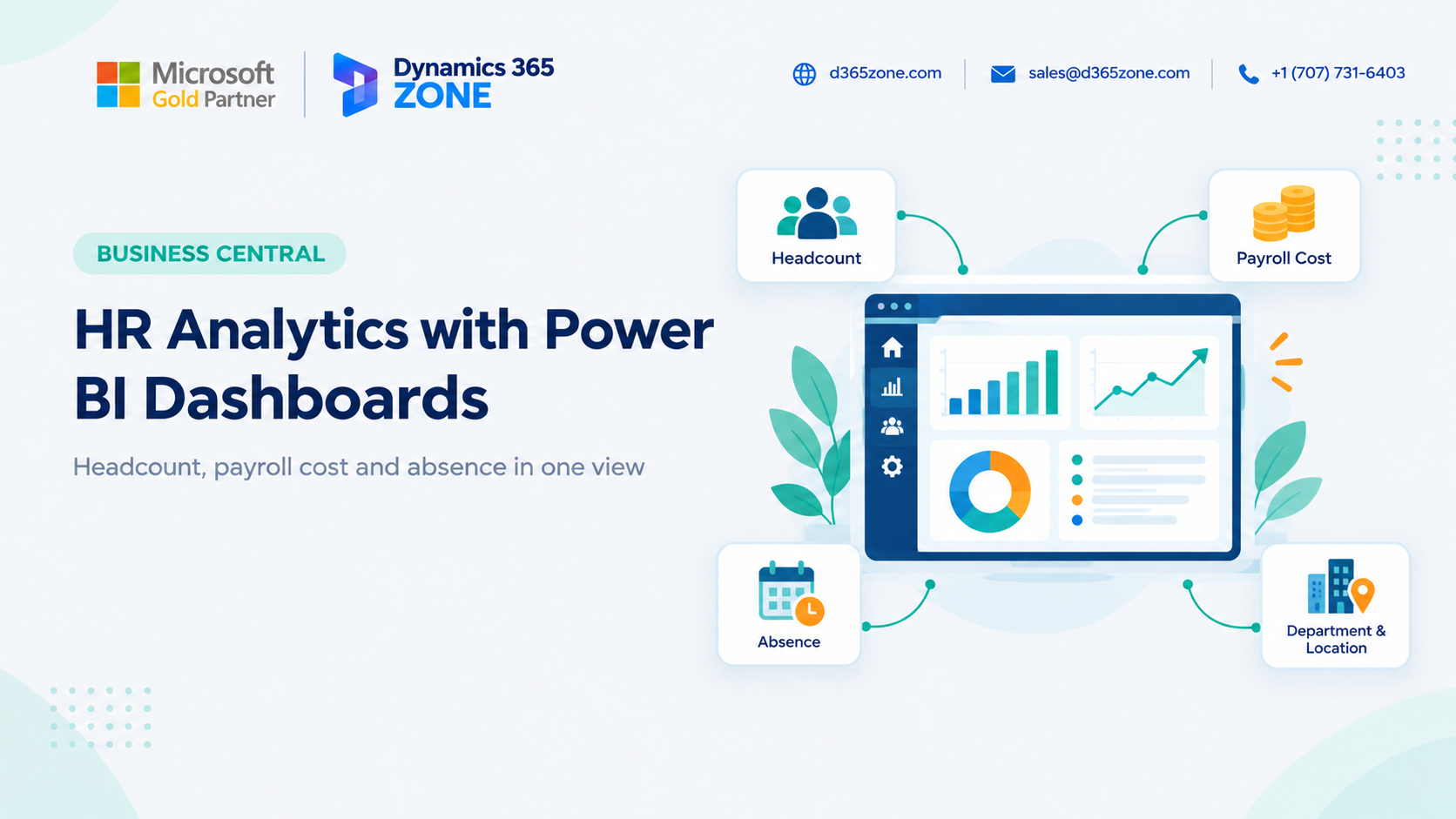
A CFO can usually answer how many people work in the business today. More detailed questions take longer: How does payroll cost break down by department? Has absence changed over the year? How many people left last quarter?
The information may already be available across your systems. If you use Microsoft Dynamics 365 Business Central, some of the underlying employee, absence, dimension, and financial data may already be there. Power BI can bring relevant data together into clear reports, helping managers explore trends without waiting for a one-off spreadsheet.
Why HR Reporting Is Often Done in Spreadsheets
A common process is to export employee information from one system and payroll data from another, combine the files in Excel, clean up the results, build pivot tables, and send a report to management.
This approach can work for an occasional snapshot, but it quickly becomes difficult to maintain. A report is already out of date when it is shared, different people may produce different versions, and there is little time left to investigate the reasons behind a trend.
It also takes time. If a headcount report takes half a day to prepare, it is unlikely to be reviewed every week. Changes in overtime cost or a rise in absence within one team can go unnoticed until they become harder to address.
What HR Data Does Business Central Have?
Business Central is an ERP system, not a dedicated HR platform, but it can hold useful information for workforce reporting. Depending on your setup, relevant data may include:
- Employee records: Employee cards can contain names, job titles, employment dates, status, and contact details.
- Absence records: Recorded employee absences can support analysis of time off over a selected period.
- Dimensions: Department, location, or cost-centre dimensions can classify employee and financial data.
- Employee ledger entries: Entries can include employee-related transactions such as expenses, advances, or payables.
- General Ledger entries: If payroll is posted to Business Central, the ledger can provide payroll costs for reporting, subject to the detail and dimensions recorded.
Detailed payroll calculations may remain in a payroll solution. If payroll costs are posted or integrated into Business Central with appropriate dimensions, Power BI can use that financial data to report staff costs by team or location.
Connecting Business Central to Power BI
Power BI can connect to Business Central through its connector. Depending on your requirements and environment, data can also be made available through Business Central APIs or web services. Some teams start with a pre-built Power BI app, while others build reports tailored to their own workforce and finance questions.
After connecting and shaping the data, you can publish reports and configure refresh schedules. Refresh frequency depends on the connection method and your Power BI setup, so reports should be presented with a clear indication of when their data was last updated rather than assumed to be live.
Before sharing reports, confirm that access permissions protect sensitive employee and payroll information. Managers should only see the detail they are authorized to access.
HR Reports to Create First
You do not need to build a large reporting suite at the start. A few focused reports can answer common management questions:
- Headcount: Show employee numbers over time, with breakdowns by department, location, or employment type. Start and end dates can help calculate historical counts; snapshot data may be needed if you want to preserve a record of past workforce changes.
- Department cost: Compare payroll and staff costs across teams and months to see how spending changes over time.
- Absence: Track absence days by team and period. Changes can prompt further investigation into workload or other workplace factors.
- Turnover: Use employee start and end dates to report joiners and leavers over time, such as the number of departures each quarter.
- Budget: Compare actual staff costs with planned costs so Finance can identify variances and investigate overspending early.
Choose two or three reports that address your immediate priorities, then expand the dashboard as people begin using it.
Use Dimensions to Analyse Payroll by Team and Location
Dimensions let you categorize transactions for analysis without creating a separate general ledger account for every department or office. If employee records and payroll journal lines are tagged consistently with department and location dimensions, Power BI can compare staff costs across teams, offices, or both.
For example, Finance could compare payroll spending in two locations or see how staff costs are distributed between Sales and Operations. The quality of that analysis depends on the underlying setup: if payroll journal lines do not include department information, there is no reliable department value for the report to group by.
Agree on dimension values, apply them consistently, and consider default dimensions and journal validation rules where appropriate. Establishing these practices early makes reporting more dependable later.
Common Data Issues to Check
Review the source data before relying on a new dashboard. Common gaps include:
- Missing dimensions: Employee records or payroll journal lines may not identify a department or location. Review dimension defaults and journal validation to improve completeness.
- Incomplete end dates: Missing or outdated employee end dates make leaver and turnover reporting unreliable. Include employee status and end-date updates in the offboarding process.
- Absence tracked elsewhere: If leave is managed in another system or a spreadsheet, include that source in Power BI or decide whether the data should be brought into Business Central.
- Insufficient payroll detail: Payroll posted only as an overall amount cannot support a detailed department breakdown. Review the posting detail or payroll integration if more granular reporting is required.
- Unclean master data: Inconsistent department names, employee statuses, or other values can fragment charts. Standardize the data before building reports.
Identify these limitations early and make them visible to report users, so management understands what the data can and cannot show.
Conclusion
HR reporting does not need to depend on late-night spreadsheet preparation. When employee records, absence information, dimensions, and payroll costs are available in Business Central or connected sources, Power BI can present headcount, payroll cost, absence, and turnover in a clear dashboard.
Reliable analytics start with clean employee data, consistent dimensions, and payroll postings with enough detail for the questions you want to answer. With those foundations in place, reports can help management see trends and explore them more easily.
Would you like to create HR dashboards?
Get in touch with our team to discuss HR analytics and Power BI dashboards for your Business Central environment.
D365 Zone Services
Microsoft Dynamics 365 Business Central implementation, integration, migration and support.
- UAE Office: Office 1406, Vision Tower, Business Bay, Dubai
- USA Office: InCorp Services, Inc., 55 W 14th St, Ste 101, Helena, MT 59601
- Email: sales@d365zone.com
- Phone: +1 (707) 731-6403
Areas served: United States, United Kingdom, France, United Arab Emirates, Saudi Arabia, Australia, Netherlands, Canada, Ireland, Germany, Belgium, Switzerland, Luxembourg, Sweden, Norway, Denmark, Qatar, Kuwait, Bahrain, New Zealand, Singapore